Estimates, purchase orders, and invoices are connected so the team can quote, confirm, and bill without retyping the same data. The cleanest workflow is to create the right source document first, then convert forward only when the business step actually changes.
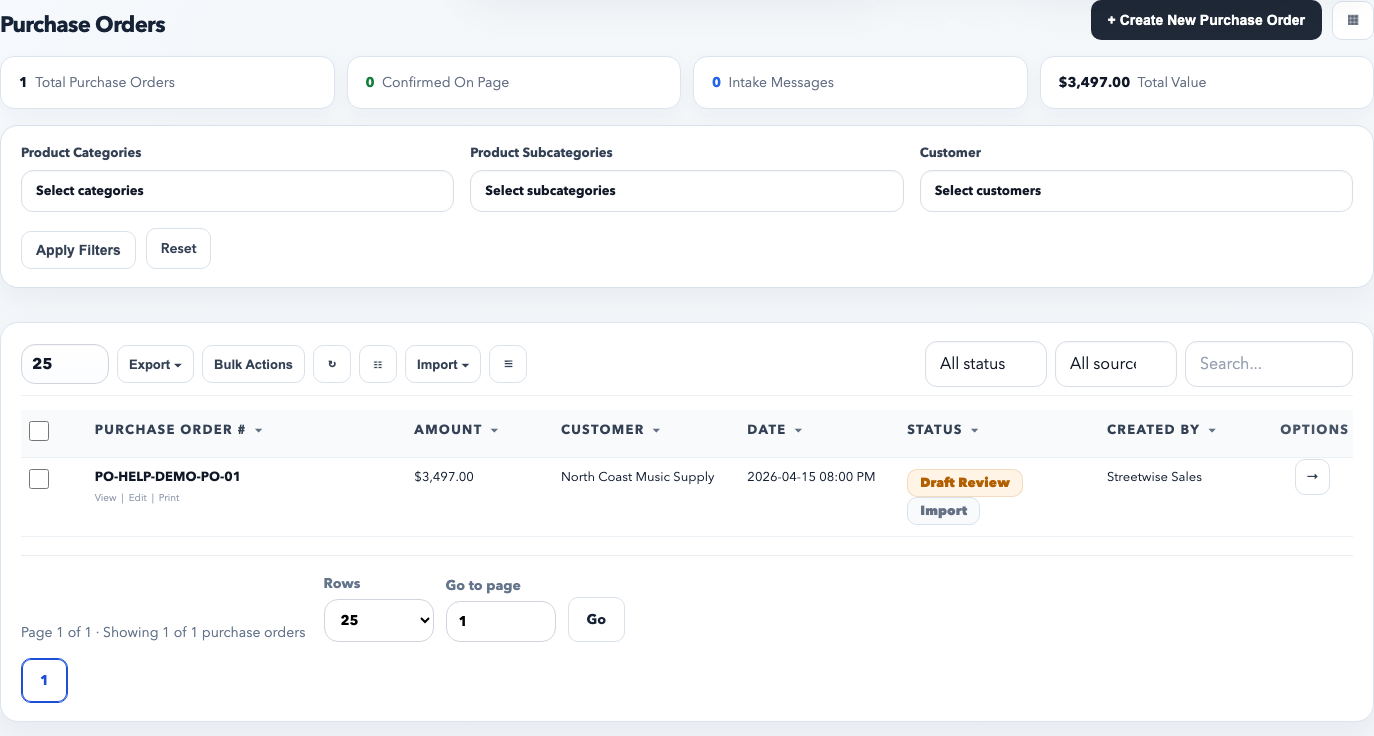
The purchase-order list is the day-to-day queue. Use it to search, filter, export, and open the right order before making document-level changes.
Recommended order flow
Create an estimate first when pricing is still being approved or negotiated.
Convert the estimate to a purchase order when the quote is approved and ready to become a real order.
Use a purchase order as the operational record for items, shipping, tasks, reminders, and customer/vendor communication.
Convert the purchase order to an invoice when it is time to bill.
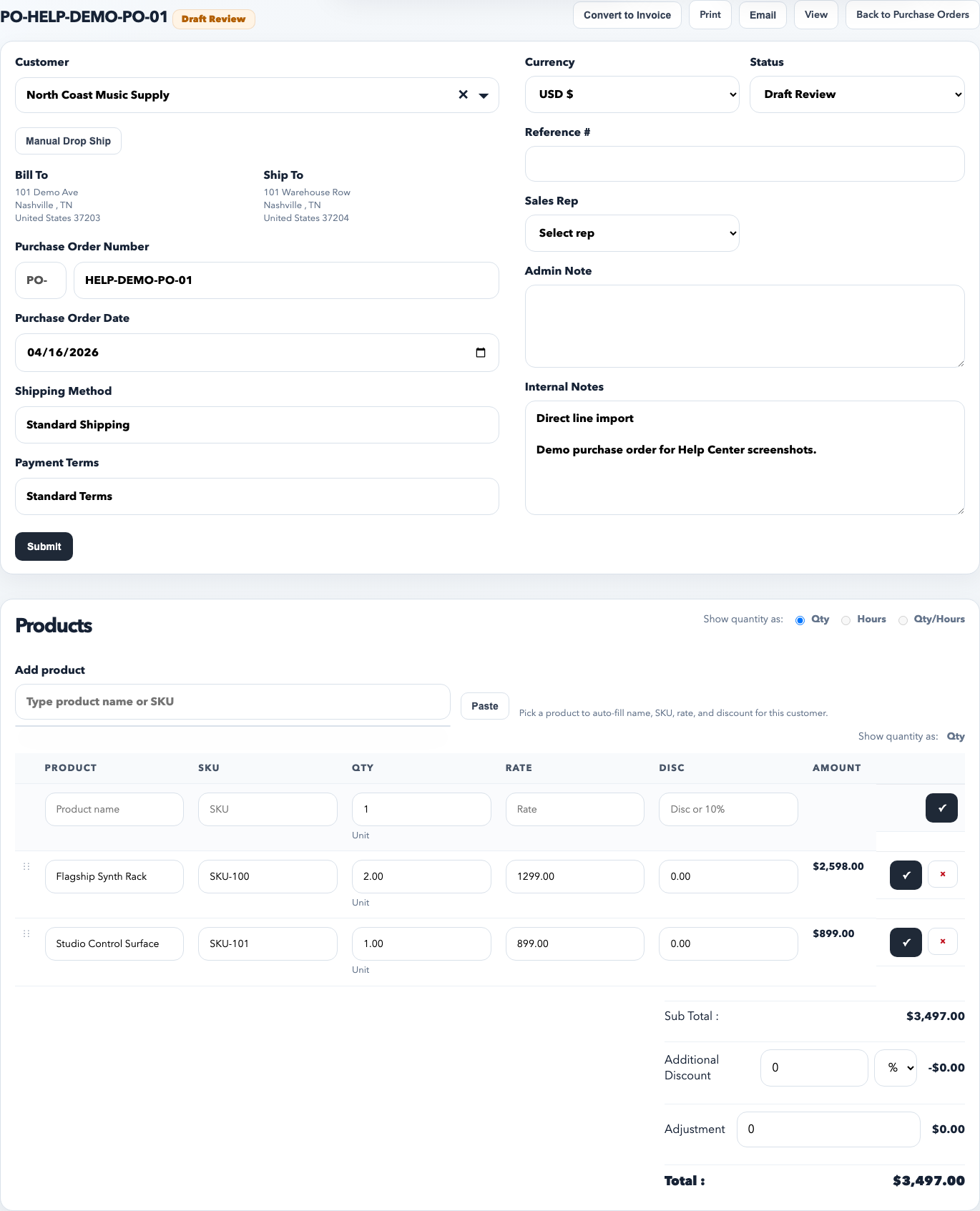
The purchase-order editor is where you refine line items, pricing, shipping details, status, and document notes before sending or converting the order.
What to review on every purchase order
The customer account is correct.
The document number and reference number match the workflow you want.
Line items, quantities, pricing, and discounts are accurate.
Shipping method, payment terms, and addresses are complete.
Status reflects the real stage of the order.
Best practices
Use the full list view for queue work and the edit view for document cleanup.
Keep statuses meaningful. Do not leave everything marked confirmed if the order is actually draft, on hold, or cancelled.
Use tasks and reminders on the order when follow-up work belongs to that specific document.
When a unit price or discount looks different than expected, check the matching product pricing and the active discount rules before overriding the line manually.
Turn on portal invoice payments only if the workspace intends to collect that way.
How discount rules affect purchase orders
Purchase orders do not calculate pricing in isolation. When you add a product to an order, RepCloud can apply product-level pricing behaviors and discount rules before the line is created. That means the price shown on the order may already reflect quantity pricing, customer-group pricing, active promotional pricing, or rule-driven pricing set by an admin.
Built-in product pricing lives on the product editor and includes quantity breaks, group pricing, and promotional pricing windows.
Discount rules live in Products → Discount Rules and can be created by an admin or imported if needed. They can apply based on client group, product category, subcategory, SKU, or product.
Purchase order lines inherit the resolved price. Reps should understand the pricing source before forcing a manual override.