Portal access is managed per contact, not just per customer account. That is the right model because portal access should be tied to the real person using the system, not to a shared company password.
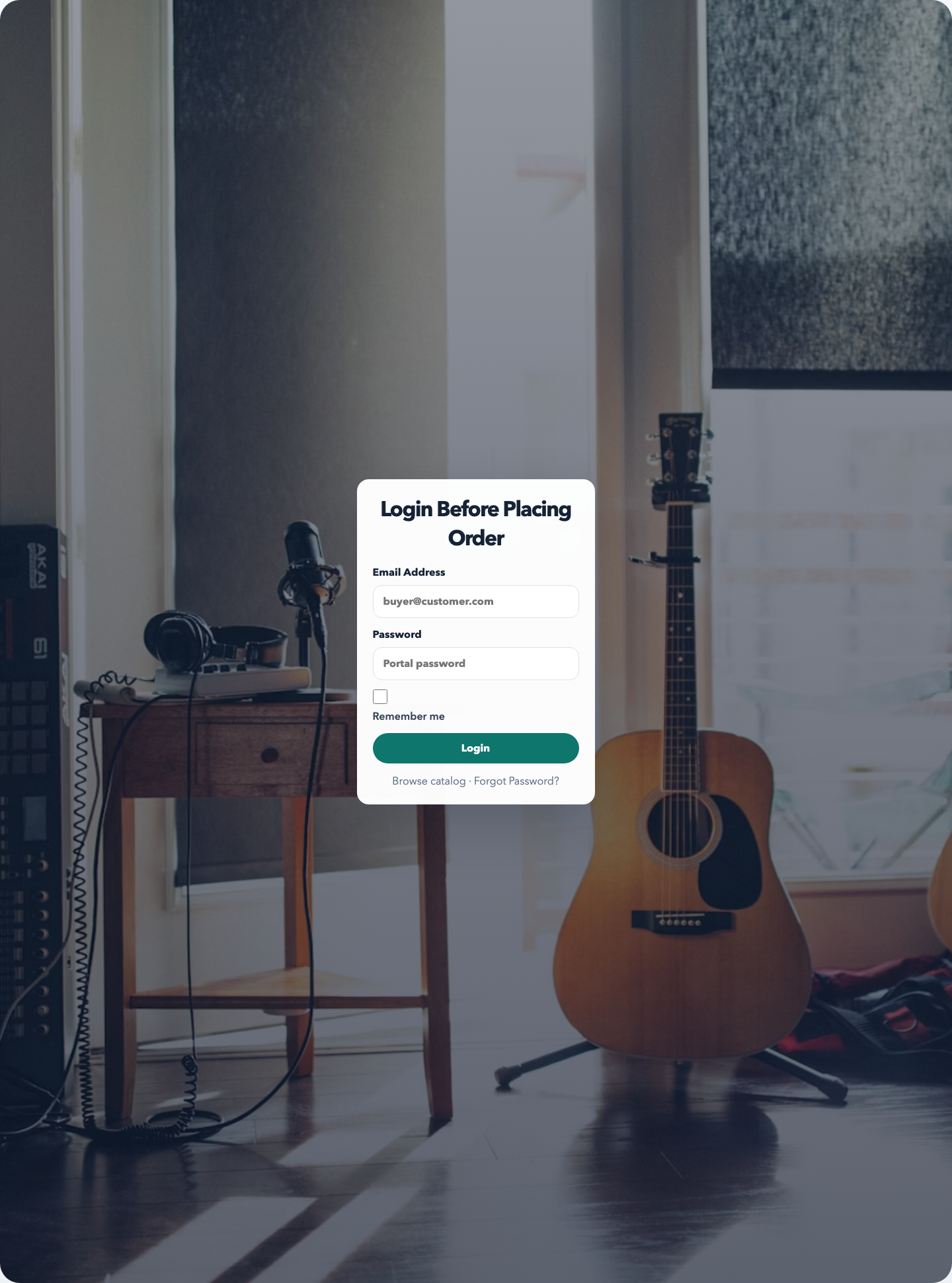
The portal starts at the branded login page. This is what the customer sees, so branding, logo, and the contact’s login credentials need to be correct before rollout.
How to enable portal access
Open the customer record and go to the contacts section.
Edit the correct contact and turn portal login on for that person.
Set or generate a portal password. Do not reuse one shared password across the whole account.
Send the welcome email when the contact is ready to log in.
Confirm branding under Branding settings so the logo, colors, and login experience match the workspace.
What the customer sees after login
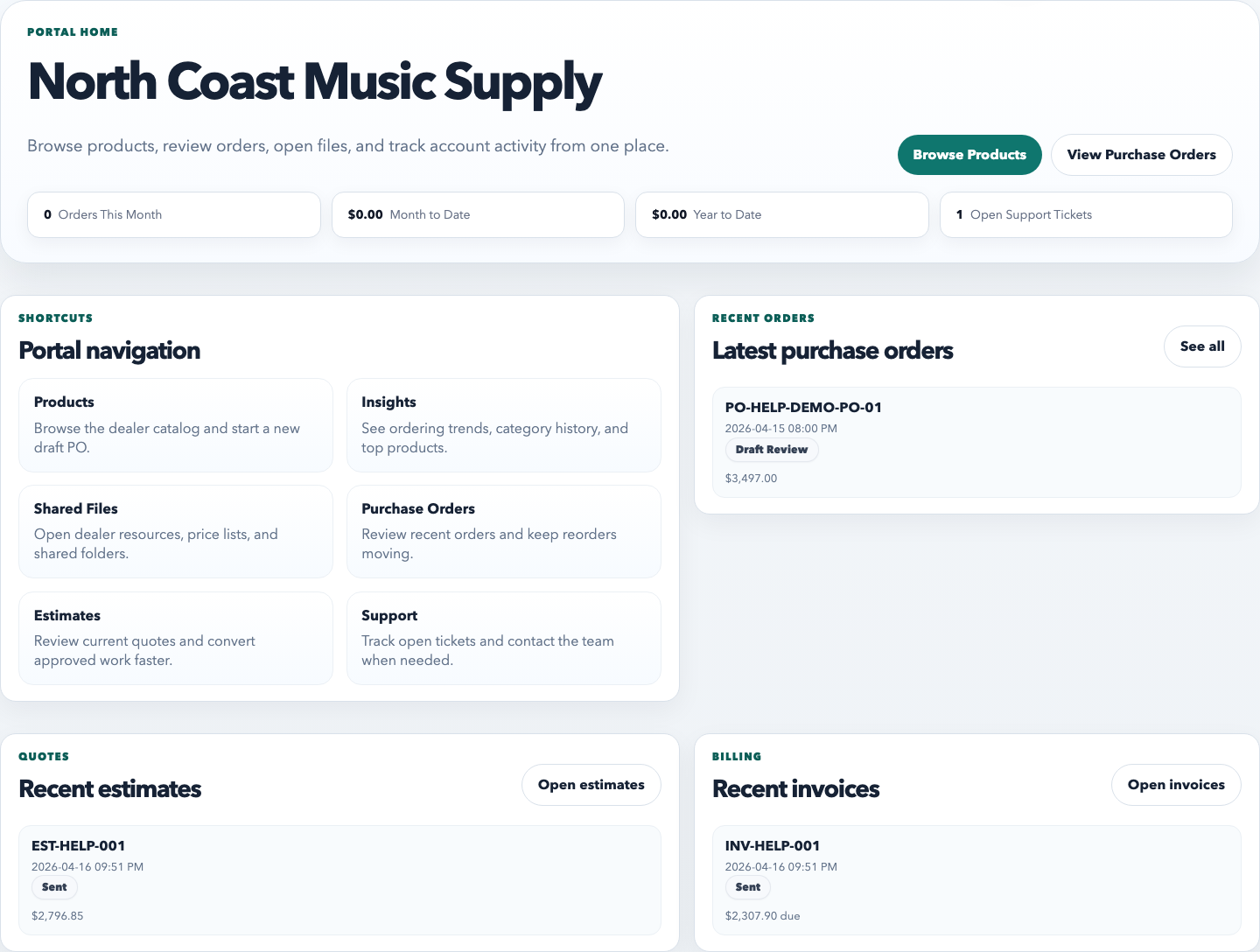
The portal home page is the landing page after login. It should orient the customer quickly and make the main sections obvious from the top navigation.
Home: the landing page with a summary of the customer’s workspace, recent activity, and the main next actions you want customers to take.
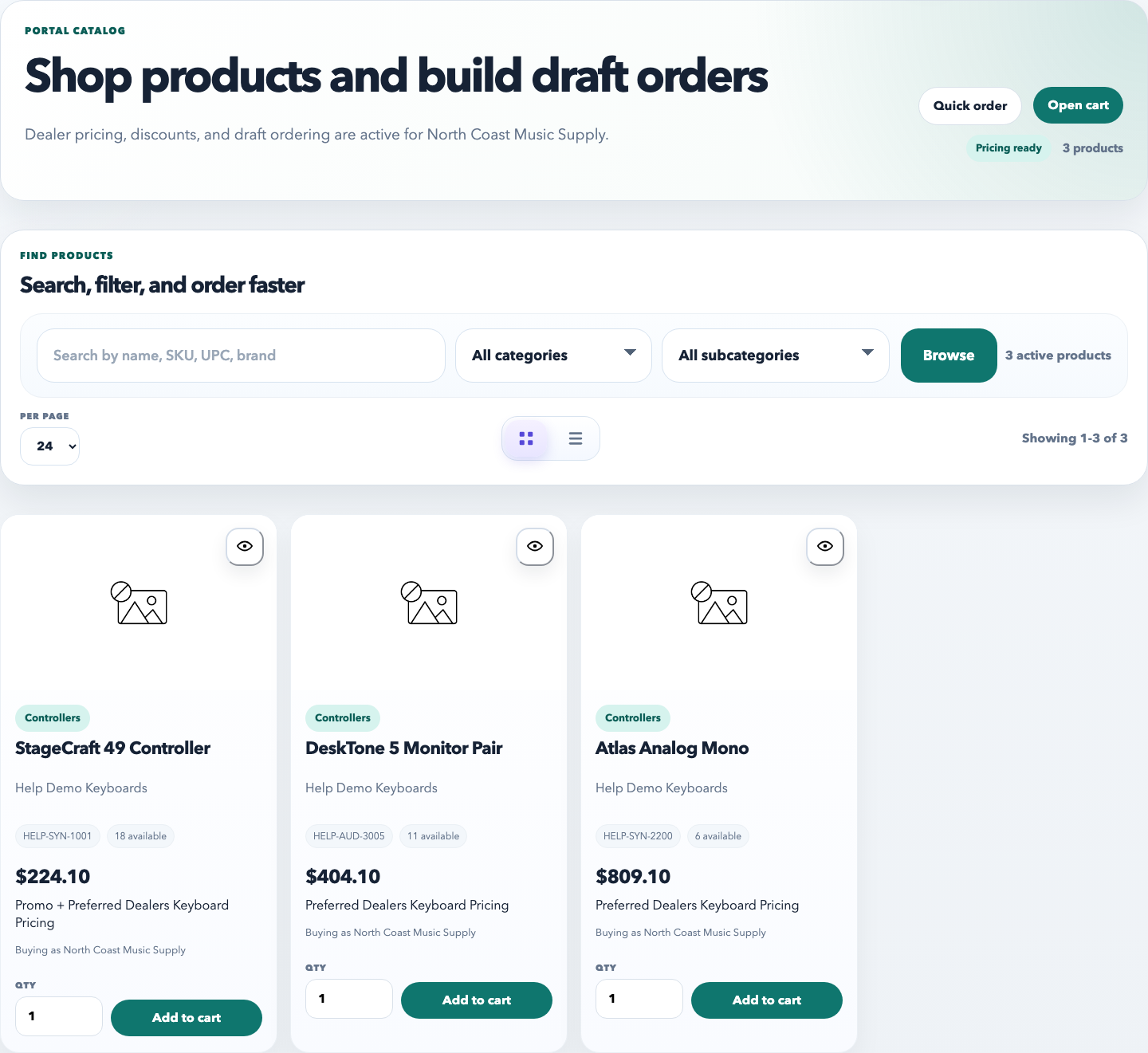
Products: the customer-facing catalog for browsing products, pricing, and ordering tools.
Insights: customer-specific dashboards or reporting cards that explain purchase activity, spend, and product performance.
Shared Files: customer resources such as line sheets, Dropbox folders, brand assets, or dealer documents.
Purchase Orders: the order history area where customers review submitted purchase orders and open individual order details.
Estimates: customer quotes and draft pricing documents that can be reviewed before they become orders or invoices.
Invoices: billing history and invoice detail pages.
Support: ticket history and the place customers submit support requests.
Portal tab guide
Products is where customers browse the catalog, search SKUs, view pricing, and build draft orders or add items to the cart.
Use the Products tab when the customer’s goal is to browse, compare, or buy. This is the most operational tab in the portal. If product visibility, pricing, or discounts are wrong here, the customer experience breaks fast.
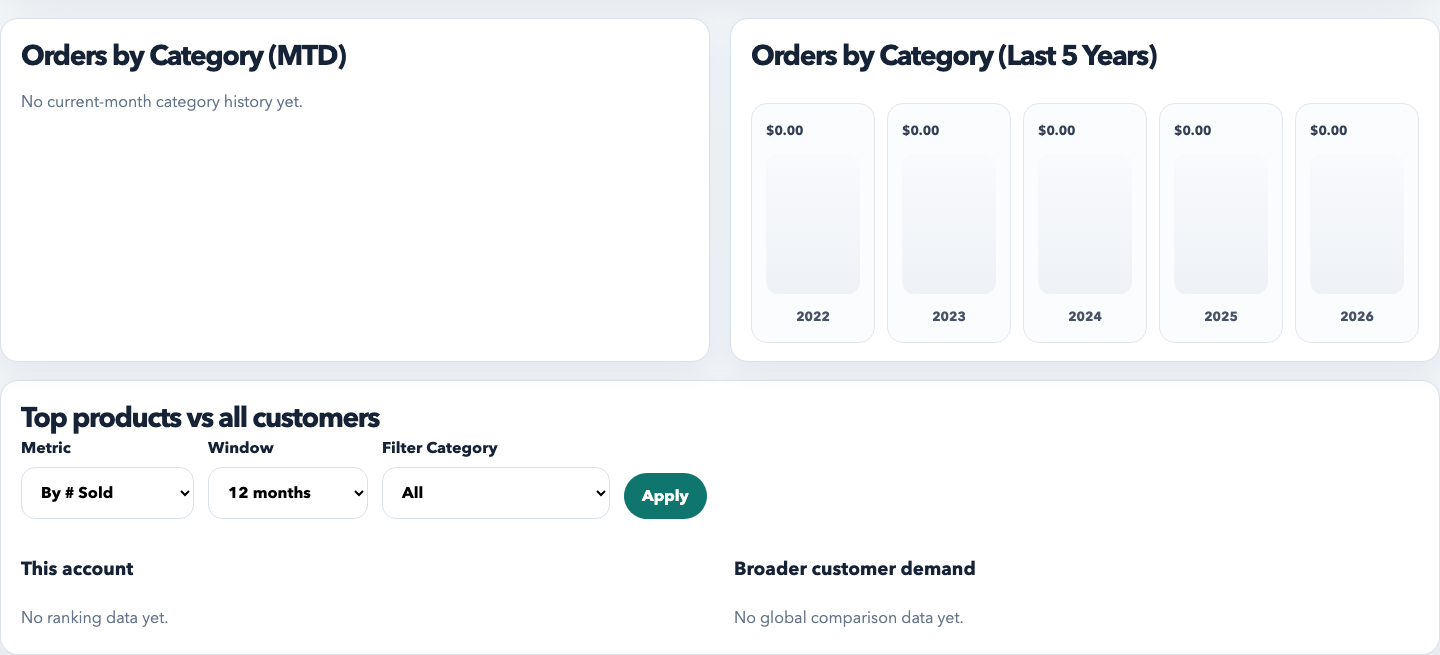
Insights turns the portal into more than a simple order page. It gives customers a reason to log in for reporting, not just transactions.
The Insights tab is for customer-facing reporting. Use it to surface order trends, top products, spend comparisons, or any account-level reporting the customer should understand without asking your staff to pull it manually.
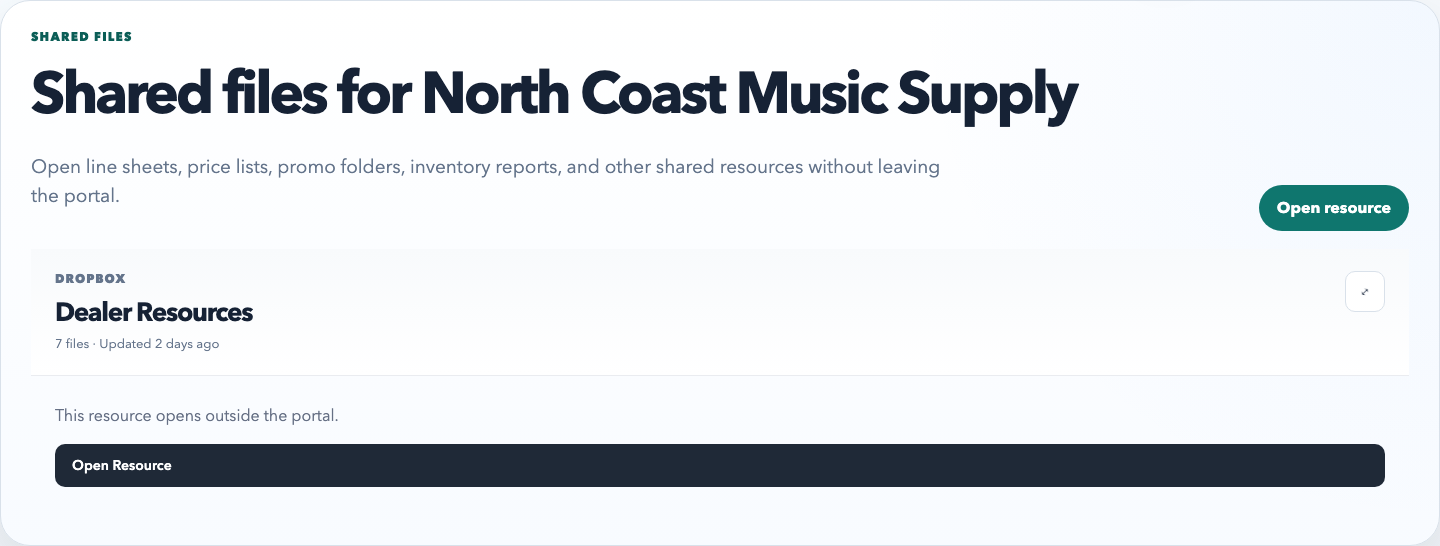
Shared Files is the resource library. Use it for customer-facing folders, dealer documents, line sheets, and reference files that should not be buried in email threads.
The Shared Files tab should stay curated. If this tab becomes a dumping ground, customers stop trusting it. Keep only current resources, and structure the content so the customer can immediately tell what is for pricing, support, or product education.
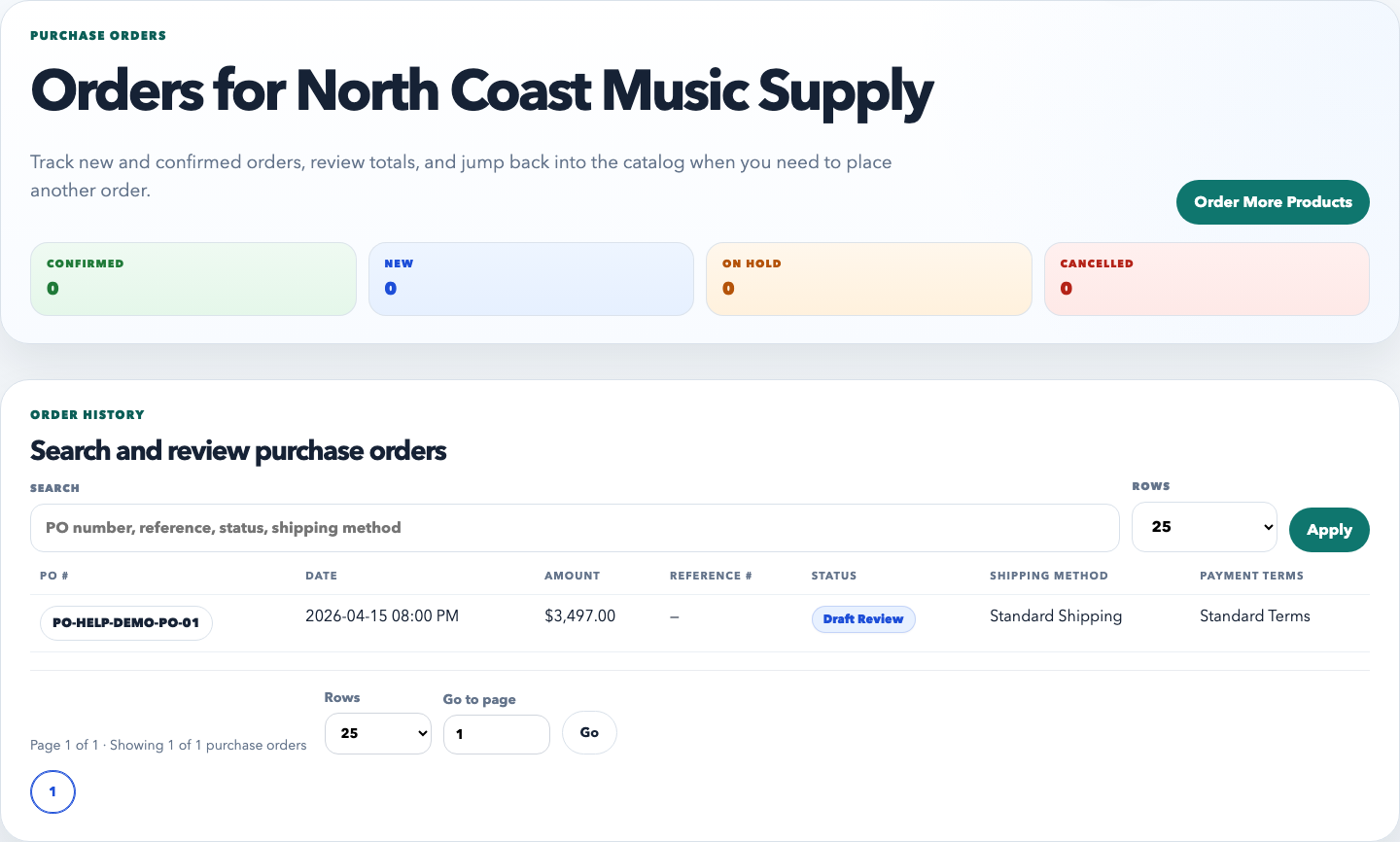
Purchase Orders is the customer’s order-history area. Customers use it to verify what was submitted, what it totaled, and what status it is currently in.
This tab should answer basic order-history questions without staff help. If a customer needs to see what they ordered, when they ordered it, or whether it is confirmed, this is where they should find it.
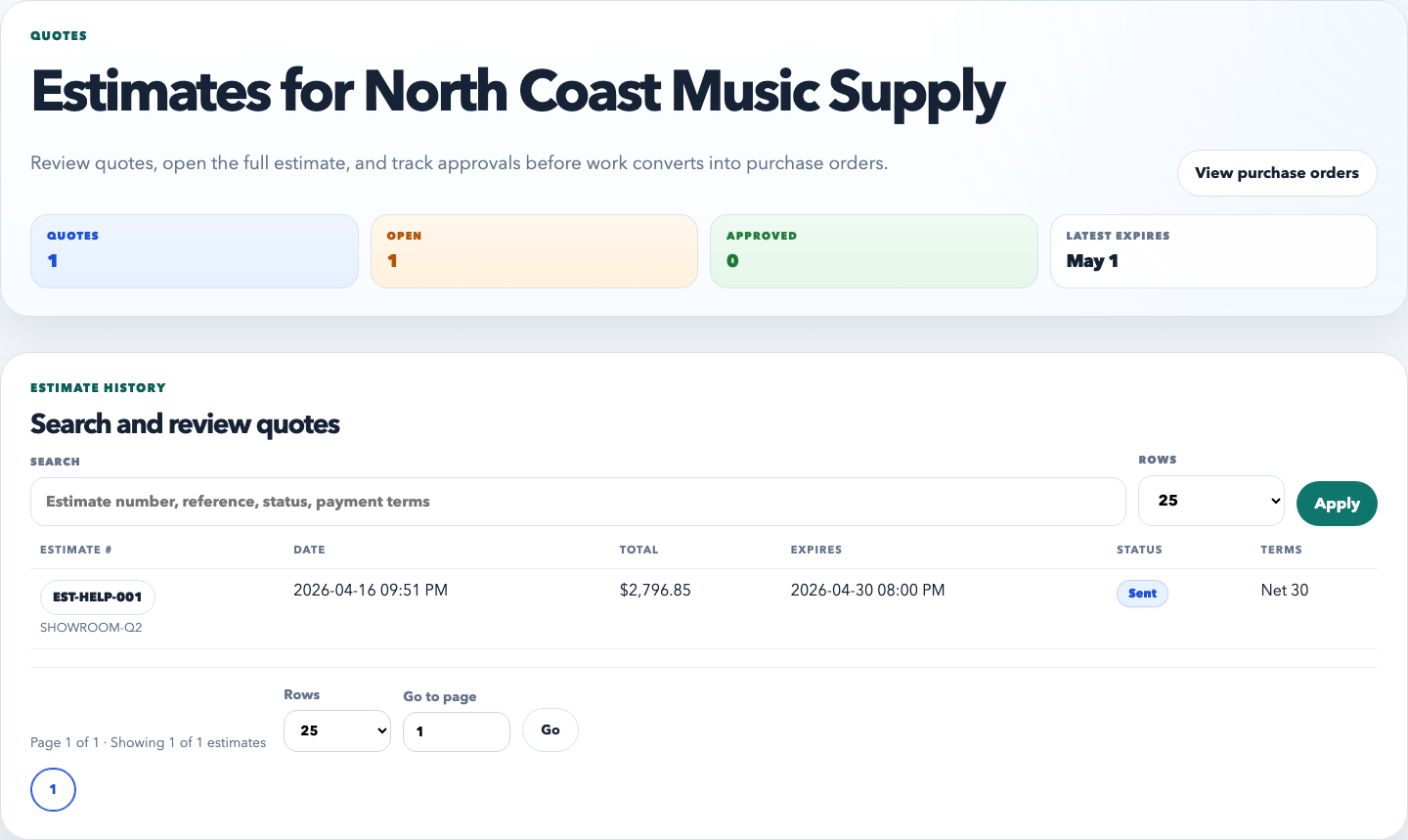
Estimates gives the customer access to pricing proposals before they become finalized transactions.
Use the Estimates tab when the customer needs to review a quote, compare numbers internally, or reference an estimate before moving forward. It should be treated as a customer-visible sales document area, not an internal-only worksheet.
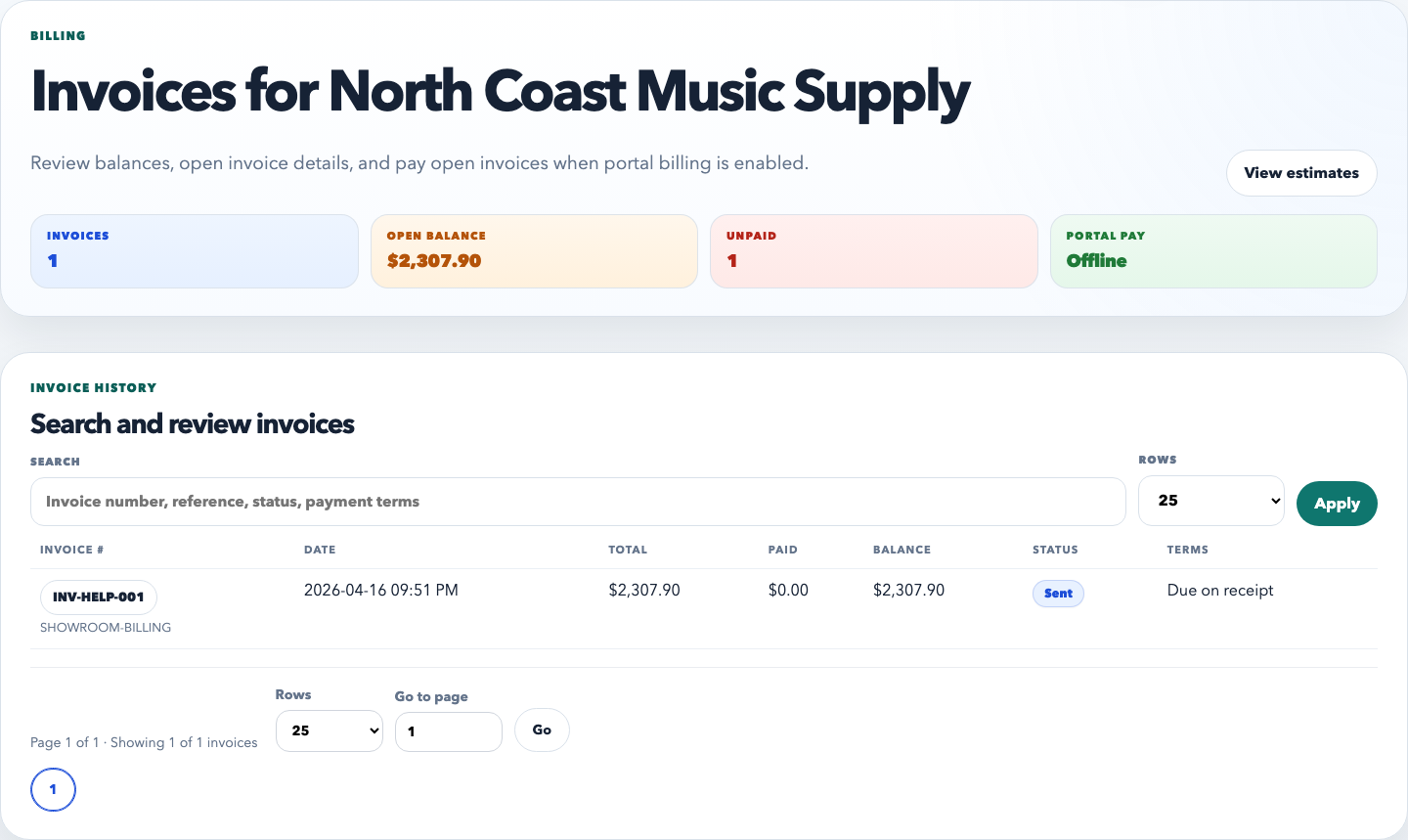
Invoices is the billing-history tab. Customers should be able to recognize what is due, what is paid, and open the relevant invoice quickly.
The Invoices tab is where billing transparency lives. If the customer is asking what was billed or what is outstanding, this tab should answer that before they need to email accounting.
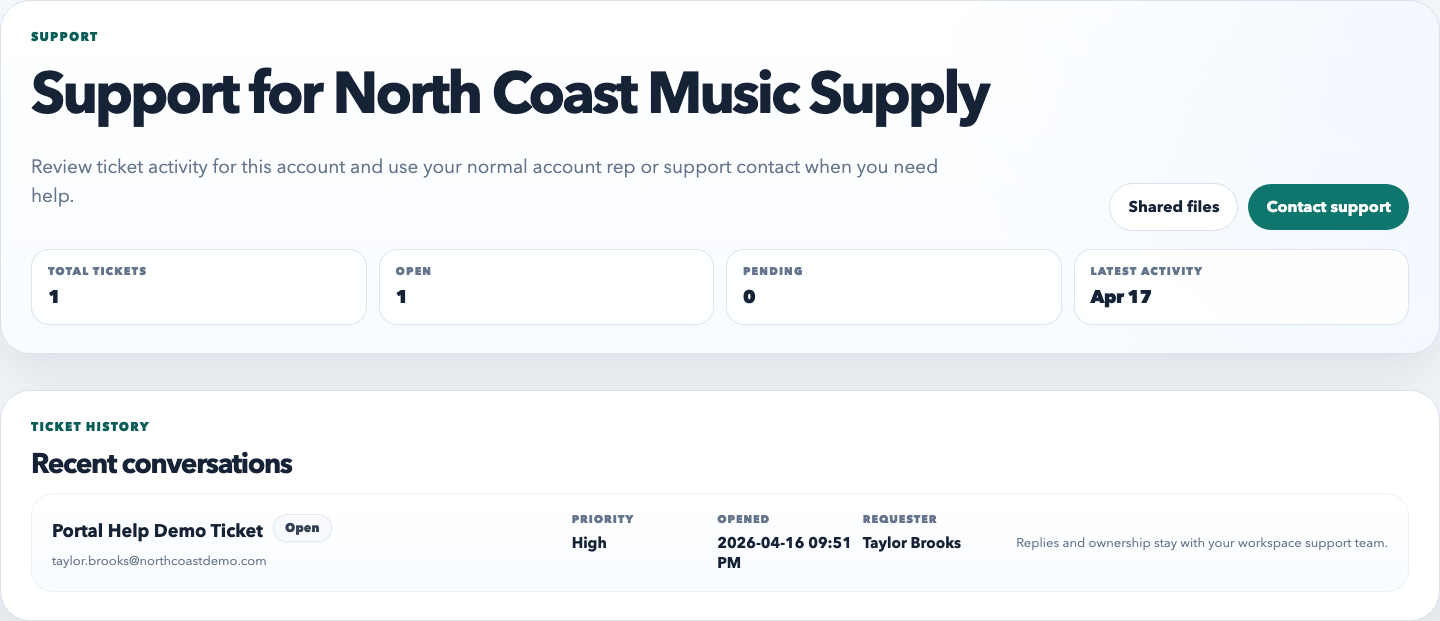
Support is the customer service tab. It should show current tickets clearly and make it easy for the customer to start a new conversation.
Support belongs in the portal because it gives the customer one consistent place to ask for help and review existing issues. This is especially important for B2B accounts that do not want service history scattered across email.
Best practices
Enable portal access only for real people who should log in.
Keep the navigation customer-facing. Do not surface internal labels or staff-only language in the portal.
Review each tab as if you were the customer. Ask whether the page explains itself without internal context.
Keep shared resources, invoices, and order history current so the portal stays trustworthy.
Common mistakes
Sharing one login across an entire customer account.
Turning on portal access before the contact record and welcome email are actually ready.
Leaving tabs enabled without real content, which makes the portal feel unfinished.
Using internal names or staff jargon in customer-facing portal pages.
Important: if a contact should no longer have portal access, disable the login on that person’s contact record or reset their password. Do not pass shared credentials around the account.
Recommended Next
Add a Customer
Create customer accounts cleanly so ownership, portal access, orders, and reporting all attach to the right record.