RepCloud has two different pricing layers, and they serve different purposes. If staff do not understand the difference, purchase orders and quoted pricing will look unpredictable even when the system is actually doing the right thing.
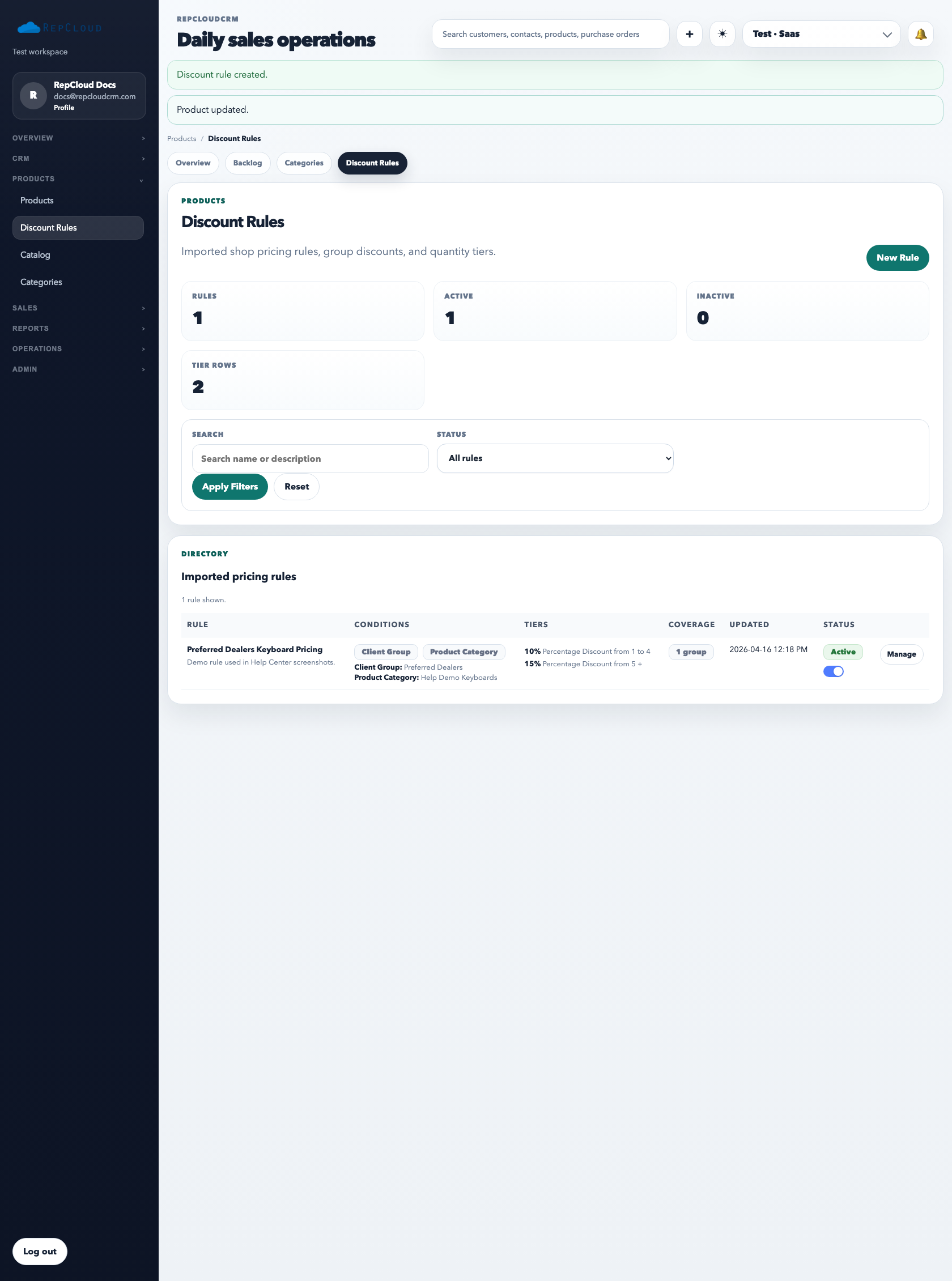
The Discount Rules directory is where broader pricing logic is managed. These rules are usually created by an admin and can target customer groups, categories, subcategories, SKUs, or exact products.
The two pricing layers
Discount rules are rule-based pricing records that can be created by an admin and apply across many products and customers.
Built-in product pricing is configured directly on an individual SKU inside the product editor.
The order-entry screens resolve pricing from those sources before the line is saved. That is why a PO or estimate line may already show a discount or lower unit price when a rep selects the product.
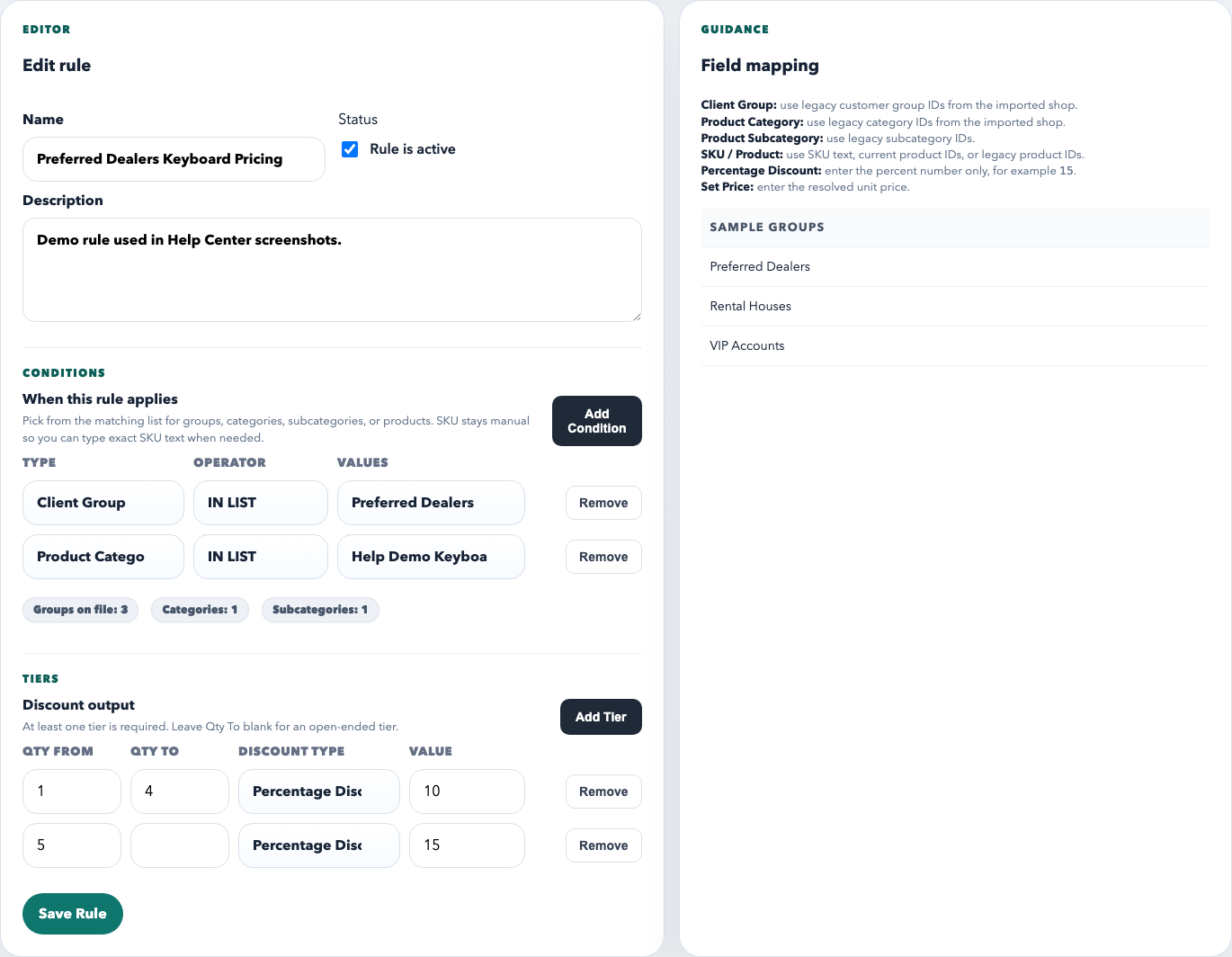
Each imported discount rule has two parts: conditions that decide when the rule applies, and tiers that decide what discount or set price should be returned.
How discount rules work
Conditions decide eligibility. A rule can target one or more client groups, categories, subcategories, SKUs, or products.
Tiers decide the result. Each tier can return a percentage discount, fixed discount, or set price based on quantity.
Active status controls whether the rule is live. If the rule is disabled, it will not affect pricing.
Coverage tells you how broad the rule is. Use that to judge whether the rule is intentionally narrow or sweeping across many products.
When to use imported rules
Dealer program pricing that should apply to a whole customer group
Brand- or category-level promotions imported from a legacy or external shop
Tiered discounts that should affect many products without editing each SKU individually
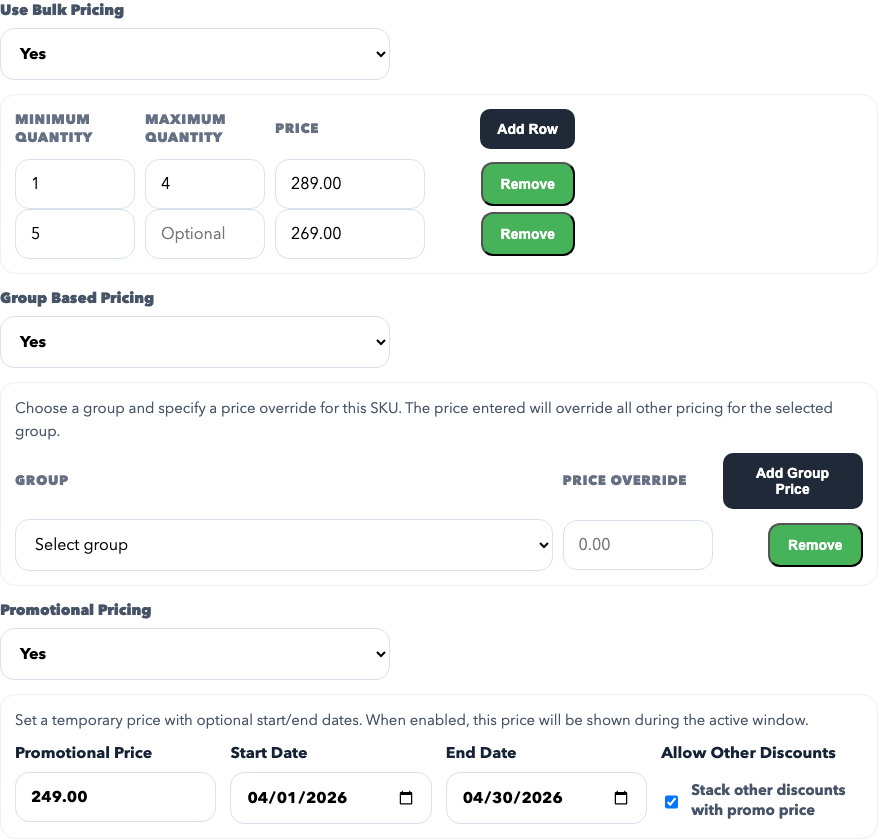
Built-in product pricing is configured directly on the SKU. This is where you control per-product quantity breaks, group-specific pricing, and promotional price windows.
How the built-in product pricing sections work
Use Bulk Pricing creates quantity breaks on one product. This is the right tool when the same SKU gets cheaper at larger quantities.
Group Based Pricing sets a direct override for a specific customer group on that product. Use it when one group should always pay a different price for the SKU.
Promotional Pricing sets a temporary reduced price with optional start and end dates.
Allow Other Discounts controls whether the promotional price can stack with other discounts or should behave as the final discounted price.
When to use built-in product pricing
One SKU needs its own quantity-break behavior
A single product has special group pricing that should not become a global rule
A limited-time promo applies to one product or one short product set and is easiest to manage directly on the SKU
Best practices
Use discount rules for broad program pricing that should apply across more than one SKU.
Use built-in product pricing for SKU-specific exceptions or short-term promos.
Review active promotional windows regularly so old promo pricing does not stay live by accident.
Check the rule or product editor before overriding a price manually on a purchase order.
Common mistakes
Using product-level promo pricing when the discount should really apply to a whole customer group or category.
Forgetting that an active imported rule may already be lowering the line price on an order.
Leaving temporary promotional pricing active after the campaign or sales window has ended.
Manually forcing order-line pricing without understanding which rule actually produced the number.