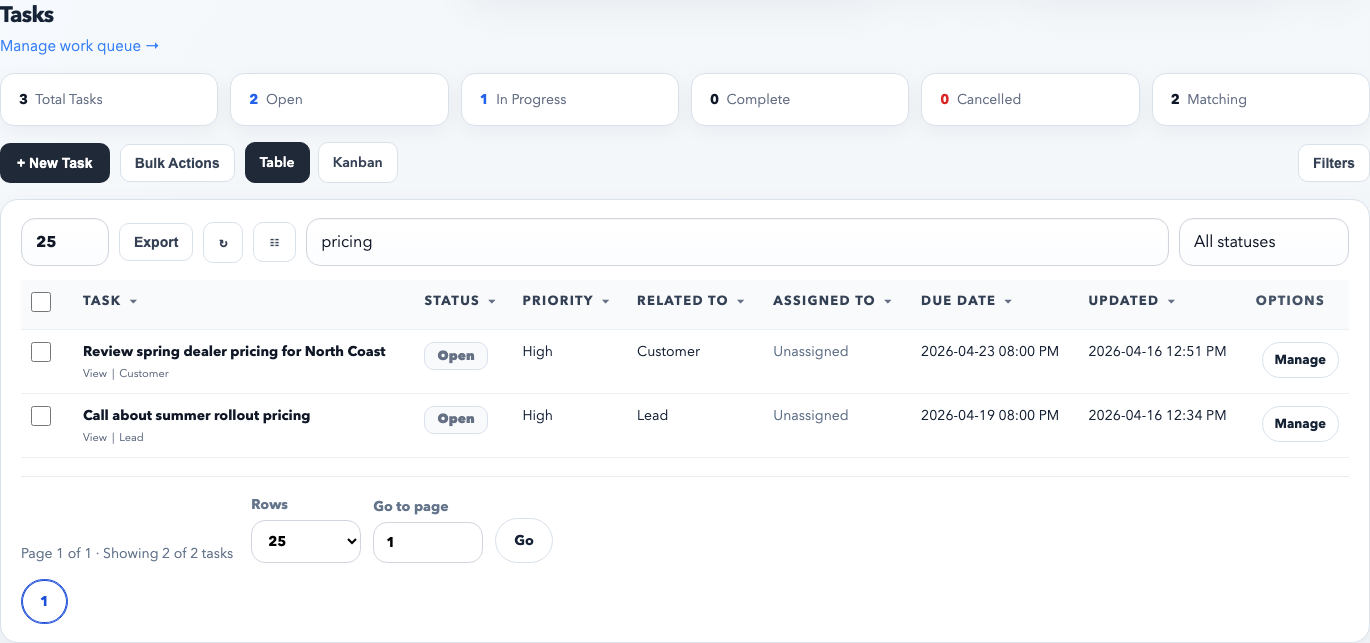
The task module is the operational work queue for the whole workspace. Use it for real commitments, not just notes, so work has an owner, a due date, and a visible status.
The table view is the best day-to-day queue for managers and individual contributors. Use it to search, sort, filter, bulk update, and open the exact task that needs attention.
Recommended task workflow
Create the task from the right place. Link it to a customer or lead whenever the work belongs to a real CRM record.
Assign an owner or assignee. If nobody owns the task, it is just a note with a due date.
Set a real status and priority. Use the queue to reflect actual work, not idealized work.
Track progress inside the task workspace. Use checklist items, comments, reminders, and followers instead of scattering follow-up across email or memory.
Close the task when it is done. Completed work should leave a clear history instead of staying open forever.
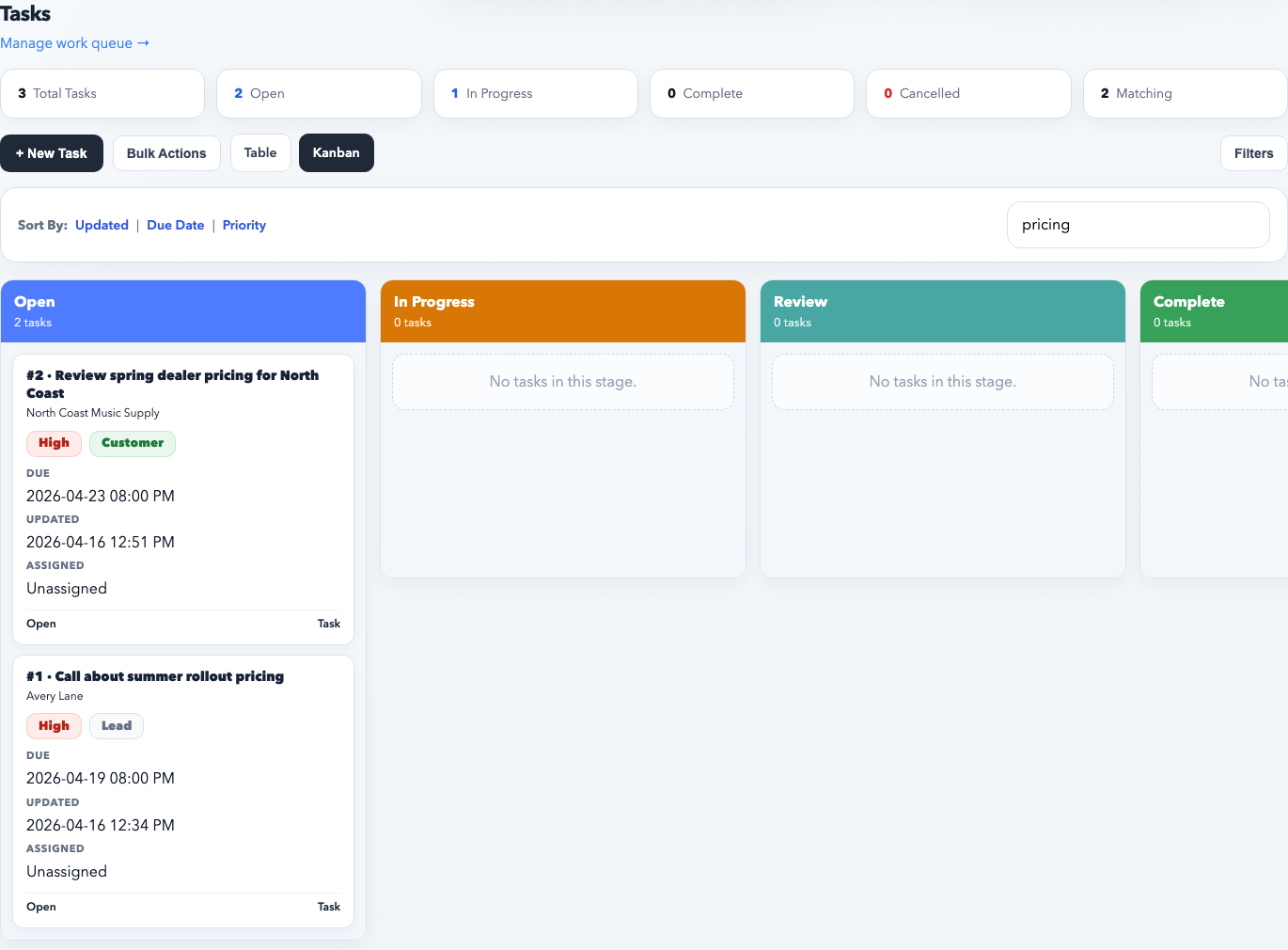
Kanban is useful when you want to review workload by stage instead of by row. It makes stalled or overloaded statuses obvious at a glance.
When to use table view versus Kanban
Use table view for bulk changes, exports, search, and detail work across many tasks.
Use Kanban for weekly reviews, standups, and visual workflow management by stage.
Use sorting intentionally. Due date is best for time-sensitive queues, while updated date is best for seeing recent movement.
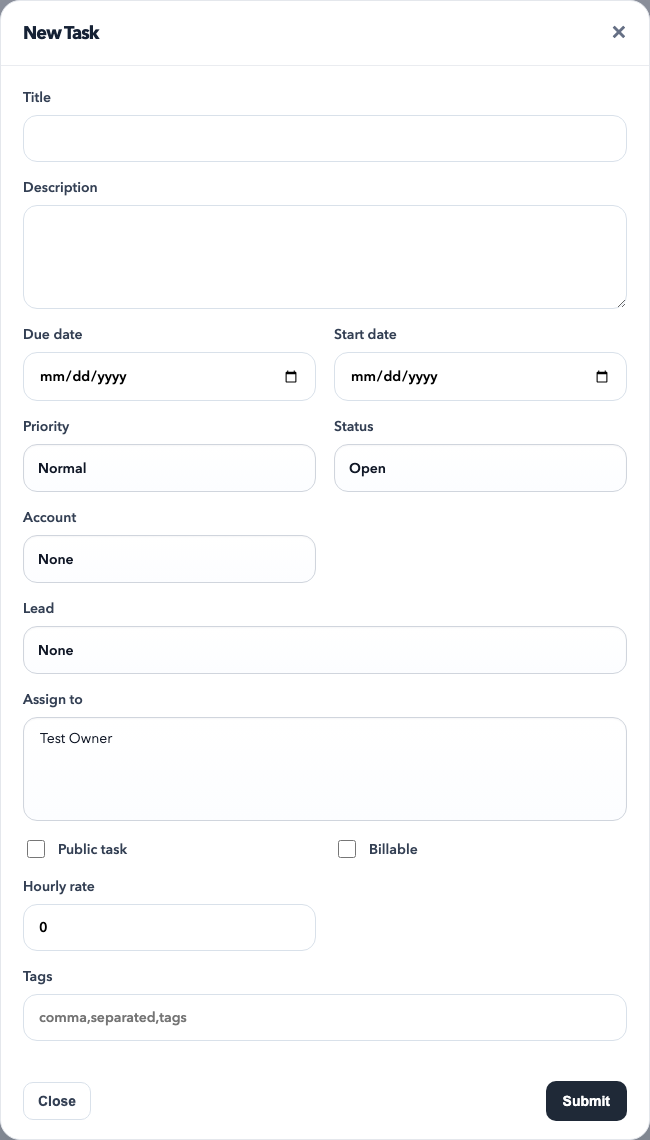
The new task modal is where you define scope and ownership. A good task has a clear title, a related record when appropriate, and at least one person responsible for moving it forward.
What to set when creating a task
Title: describe the work plainly, not vaguely.
Status: use open for new work, then move to in progress, review, complete, or cancelled as needed.
Priority: reserve urgent and high for work that is truly time-sensitive.
Related record: attach the task to a customer or lead whenever the work belongs to that relationship.
Assignees: pick the people who must actually do the work, not everyone who is merely interested.
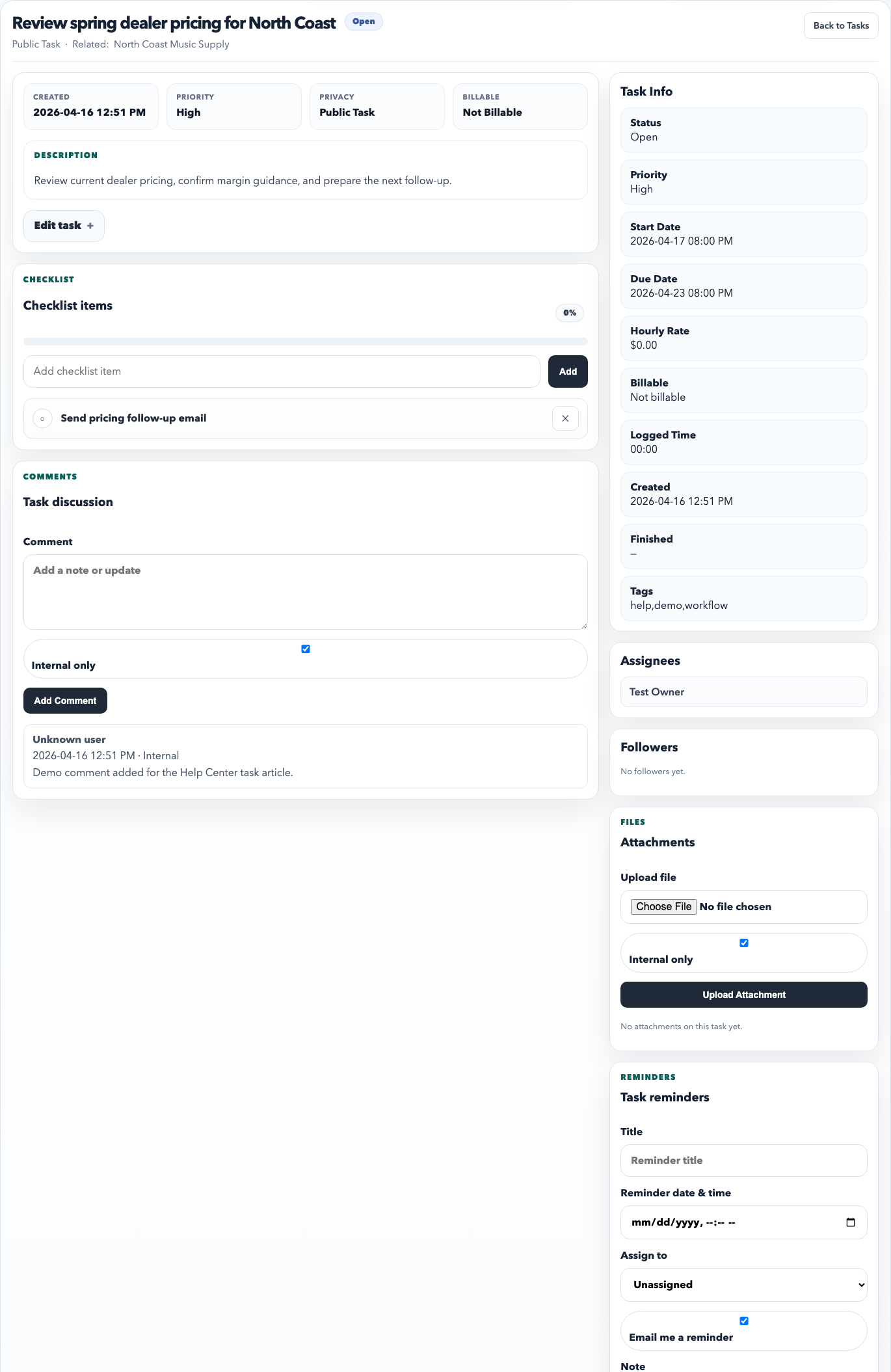
The task detail workspace is where a task becomes operational. Use it to update scope, manage assignees and followers, keep a checklist, add comments, and schedule reminders without losing context.
What belongs on the task detail page
Edit panel: update status, dates, related CRM record, billable flag, tags, assignees, and followers.
Checklist: break larger work into completion steps that can be checked off visibly.
Comments: store internal discussion and progress updates on the task itself.
Reminders: create time-based prompts when follow-up should happen on a specific date.
Files: attach relevant supporting documents to the task when they belong with the work item.
Best practices
Link tasks to the customer or lead they belong to so the relationship history stays intact.
Use checklist items for sub-steps and comments for narrative updates.
Assign followers only when someone truly needs visibility, not by default.
Review open tasks by due date regularly so overdue work does not hide in the queue.
Common mistakes
Creating vague tasks like “follow up” with no due date or owner.
Leaving finished tasks open because nobody closes them.
Using comments as the only workflow tracker instead of updating status and checklist items.
Assigning too many people and making ownership unclear.