The calendar module handles two related workflows. Internal events are for the team’s schedule. Appointment types are the public-facing booking templates customers or prospects can use to reserve time.
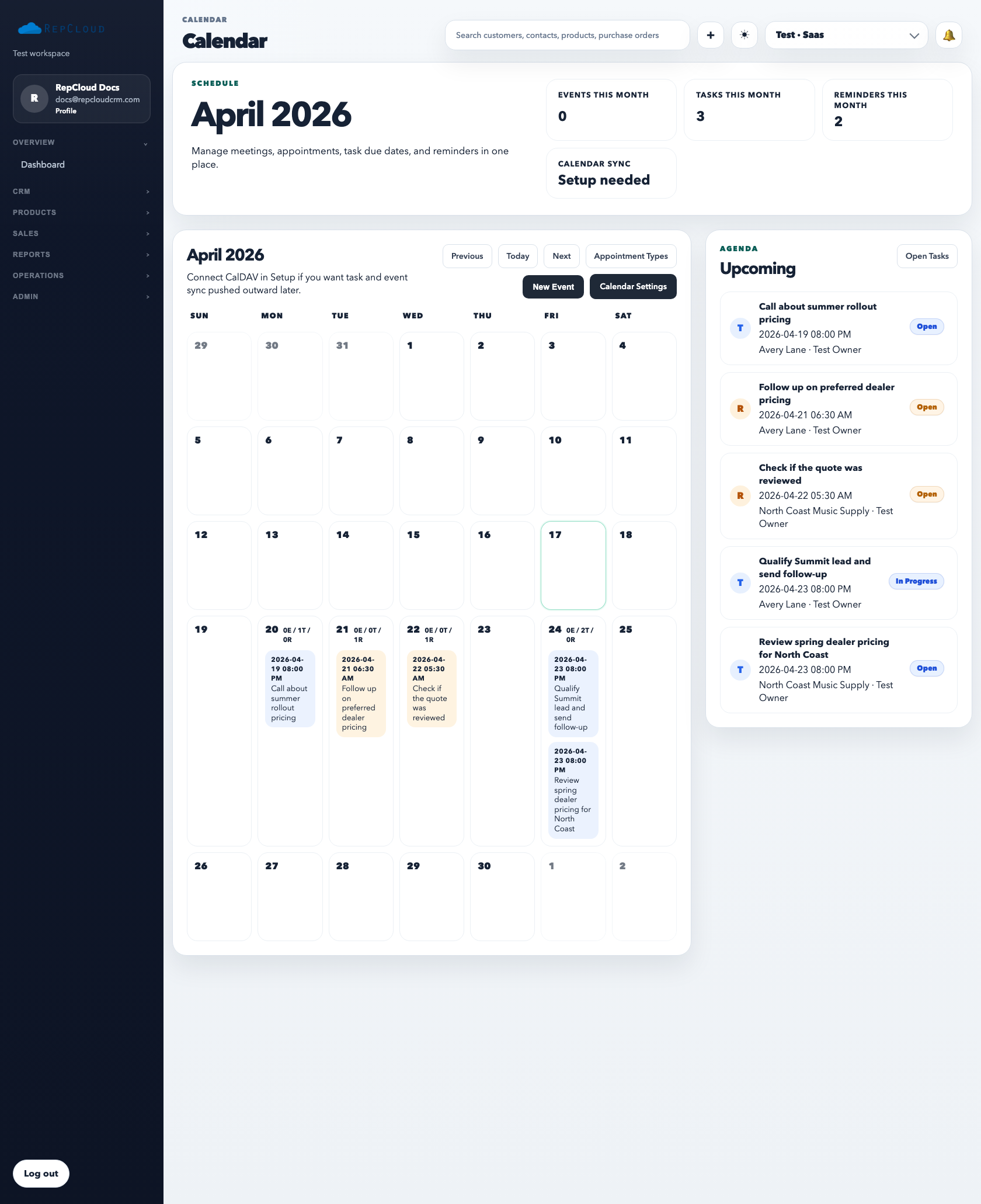
The calendar view is where the team reviews the schedule at a glance and decides where new meetings, reminders, or follow-up events should be placed.
How to use the calendar
Open Calendar to review the monthly view.
Click an empty date or use New Event when you need to schedule something manually.
Open an existing event to update attendees, times, notes, reminders, or status.
Use related account links when the event belongs to a real customer conversation.
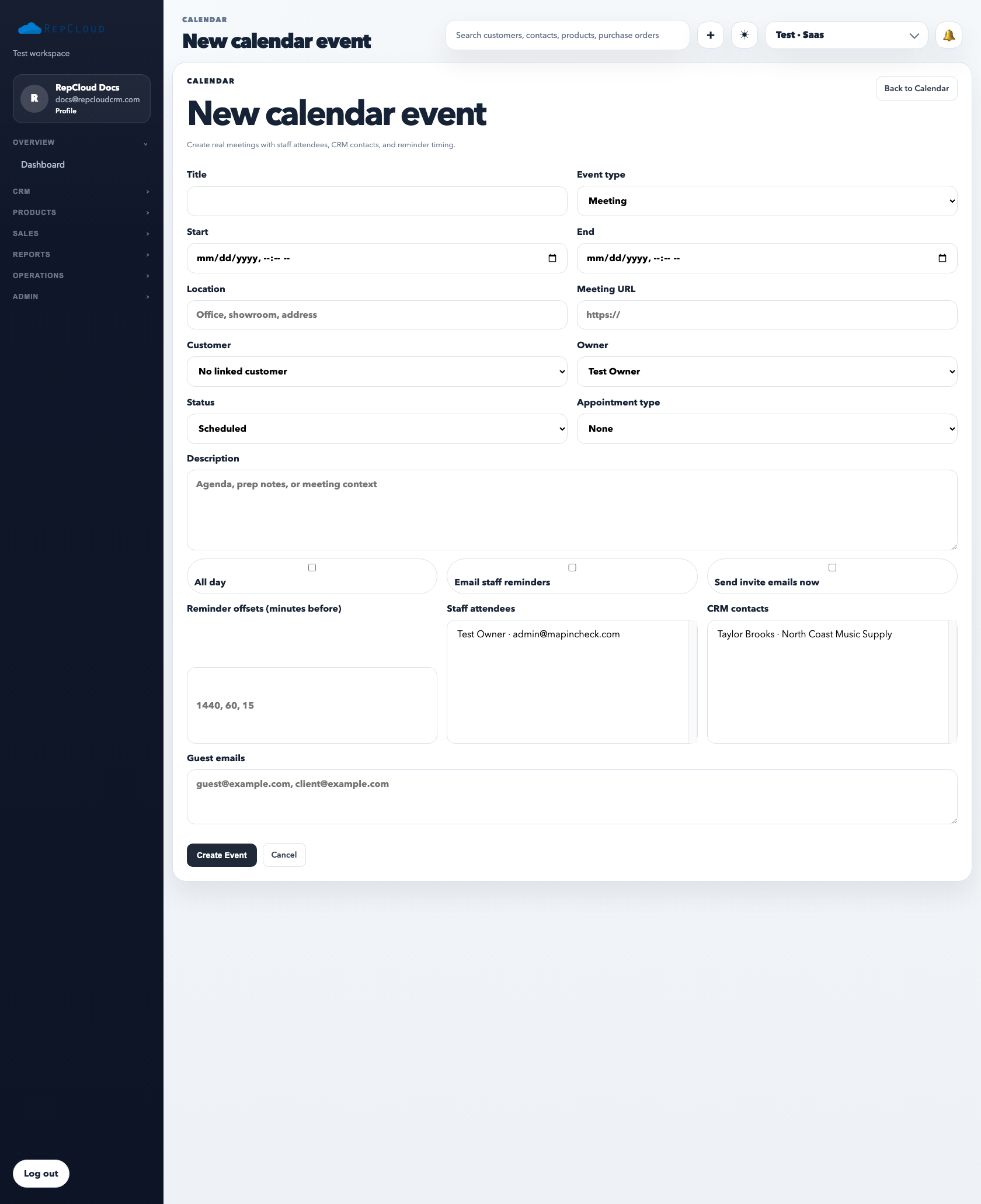
The event detail form is where you turn a time slot into a real scheduled record with an owner, an account, attendees, reminders, and context.
What to set on an event
Title: state the purpose clearly so the calendar is readable.
Owner: choose the person responsible for the meeting.
Account: link the customer when the event belongs to a live relationship.
Attendees: include the people who actually need to show up.
Reminder offsets: use them when a meeting should trigger preparation work.
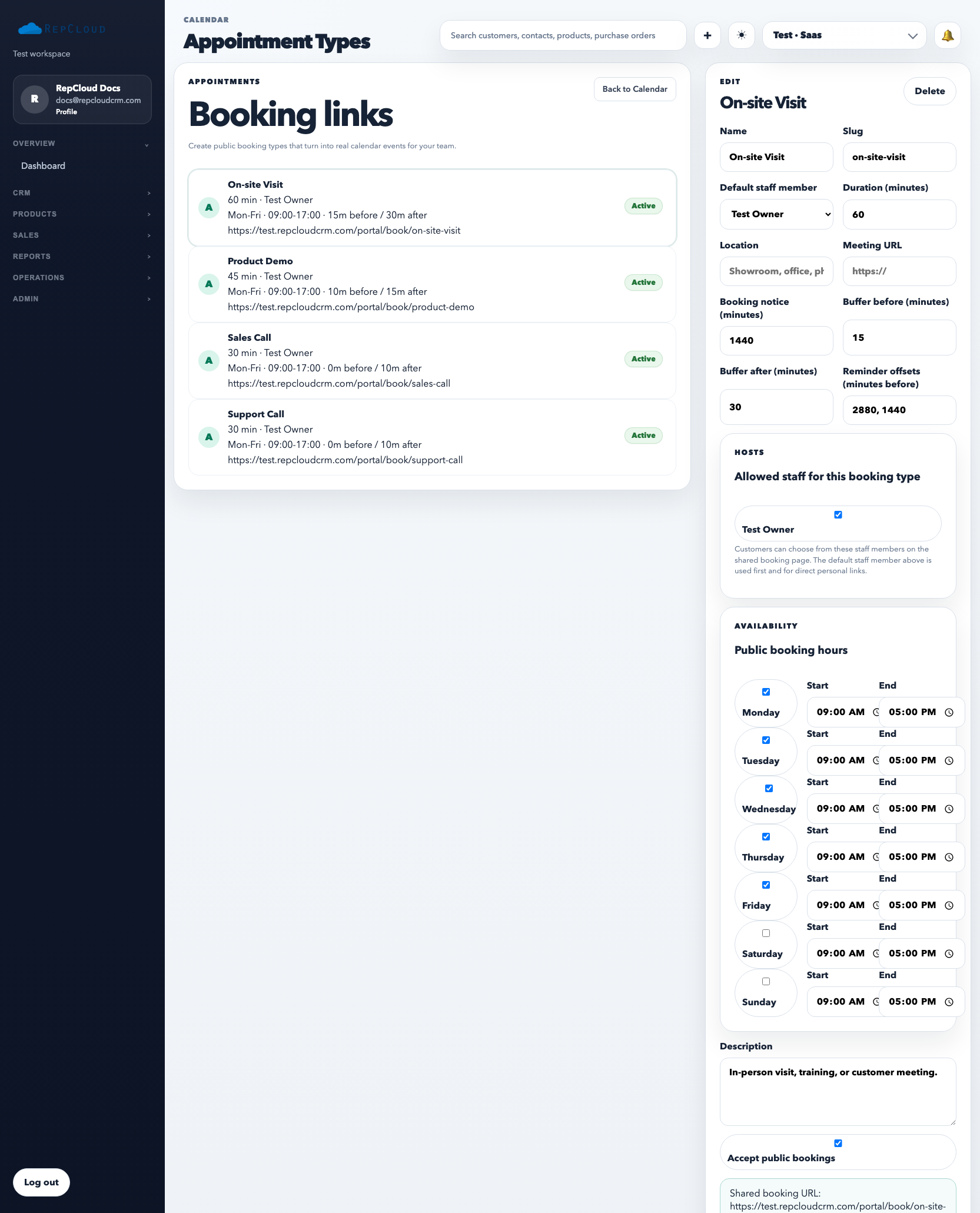
Appointment types are the booking layer. They let you publish a controlled meeting option instead of manually scheduling every call or demo.
How to use appointment types
Open Calendar → Appointment Types.
Create or edit the appointment type with a clear name and booking slug.
Set the host, duration, buffers, and notice window.
Configure allowed days and hours so customers can only book during valid availability windows.
Share the booking link only after the configuration is correct.
Best practices
Use separate appointment types for different meeting goals, such as demos, support calls, or sales calls.
Keep meeting titles and descriptions customer-readable.
Use buffer and notice rules so staff are not double-booked or surprised.
Common mistakes
Using one generic appointment type for everything.
Leaving availability too open and creating unrealistic booking windows.
Forgetting to attach the event to the right account or staff owner.