RepCloudCRM campaigns are built entirely inside the app, including recipient targeting, template usage, builder editing, queueing, and analytics. The cleanest workflow is to build the audience first, confirm the sender and content second, then queue or schedule only after the recipient count looks right.
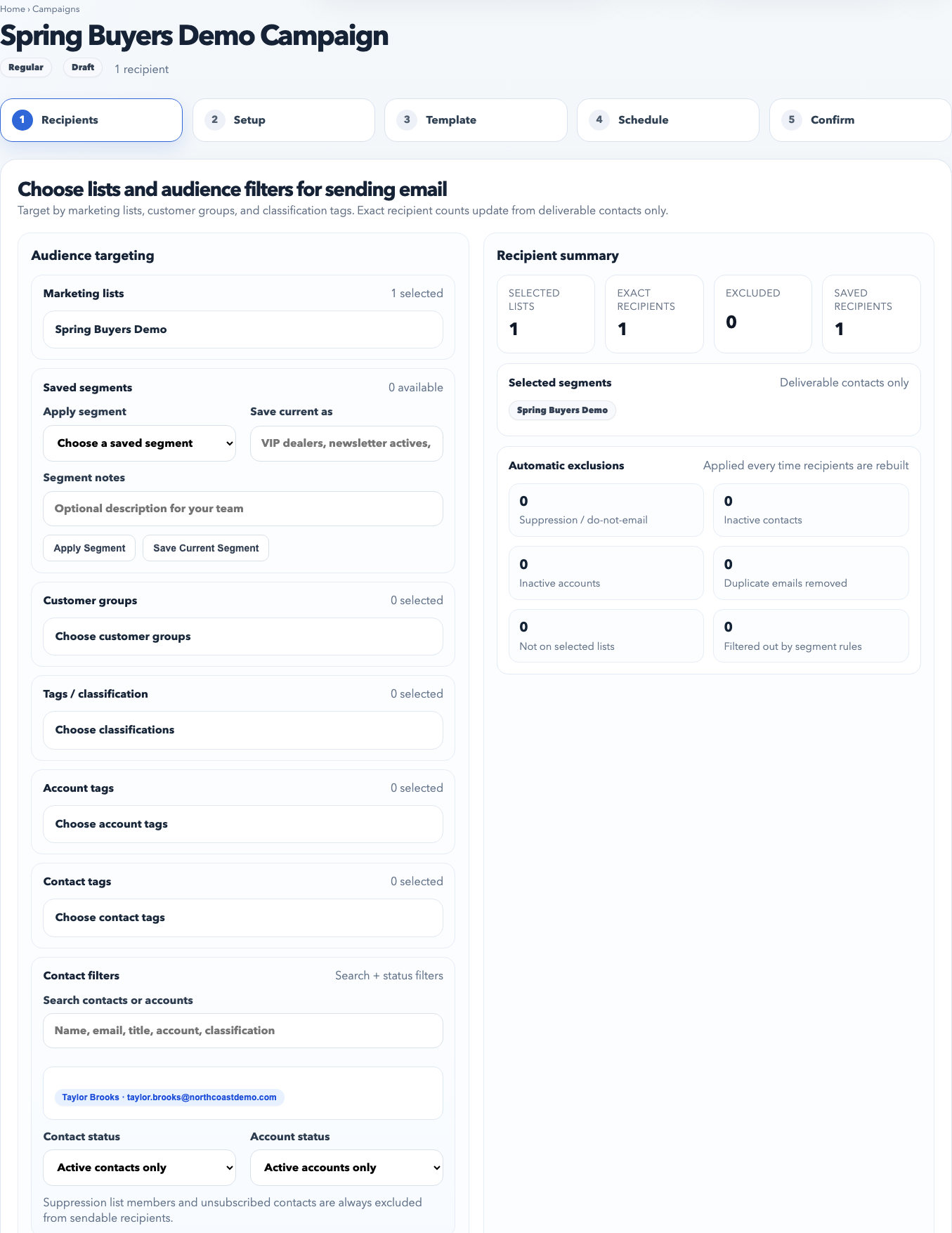
Start in the Recipients step. Choose a marketing list first, then refine with segments, customer groups, classifications, tags, or direct contact search only if the send needs tighter targeting.
Recommended campaign workflow
Create a campaign draft. Start from a blank campaign or launch one from a saved template.
Choose recipients first. Pick one or more marketing lists, then tighten the audience with saved segments or live CRM filters if needed.
Check the recipient summary. Look at exact included recipients, excluded contacts, and selected filters before moving on.
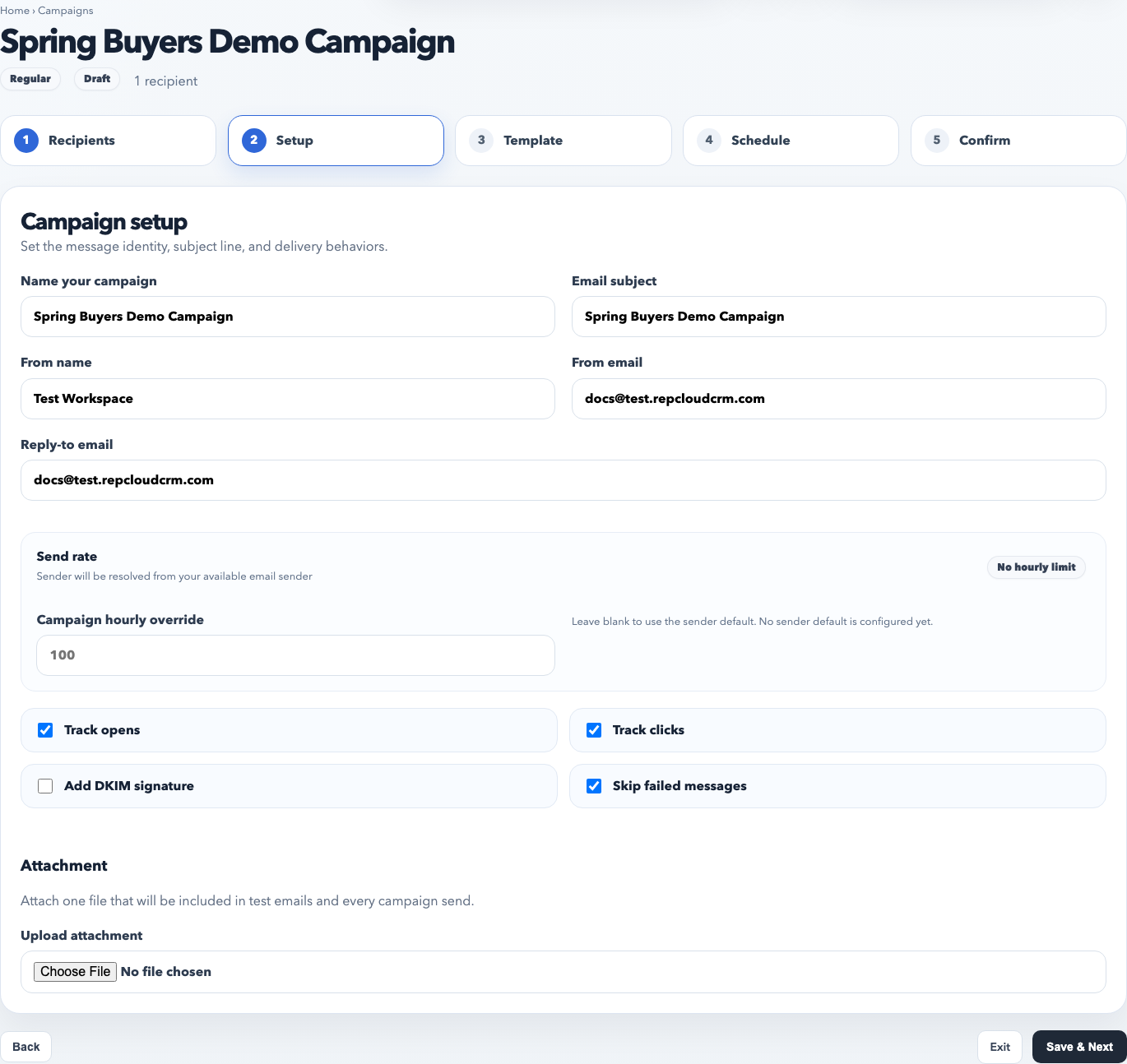
Review sender settings. Confirm the from name, from email, reply-to email, and tracking options in the setup step.
Finalize the design and copy. Use the builder and preview/test tools before treating the campaign as ready.
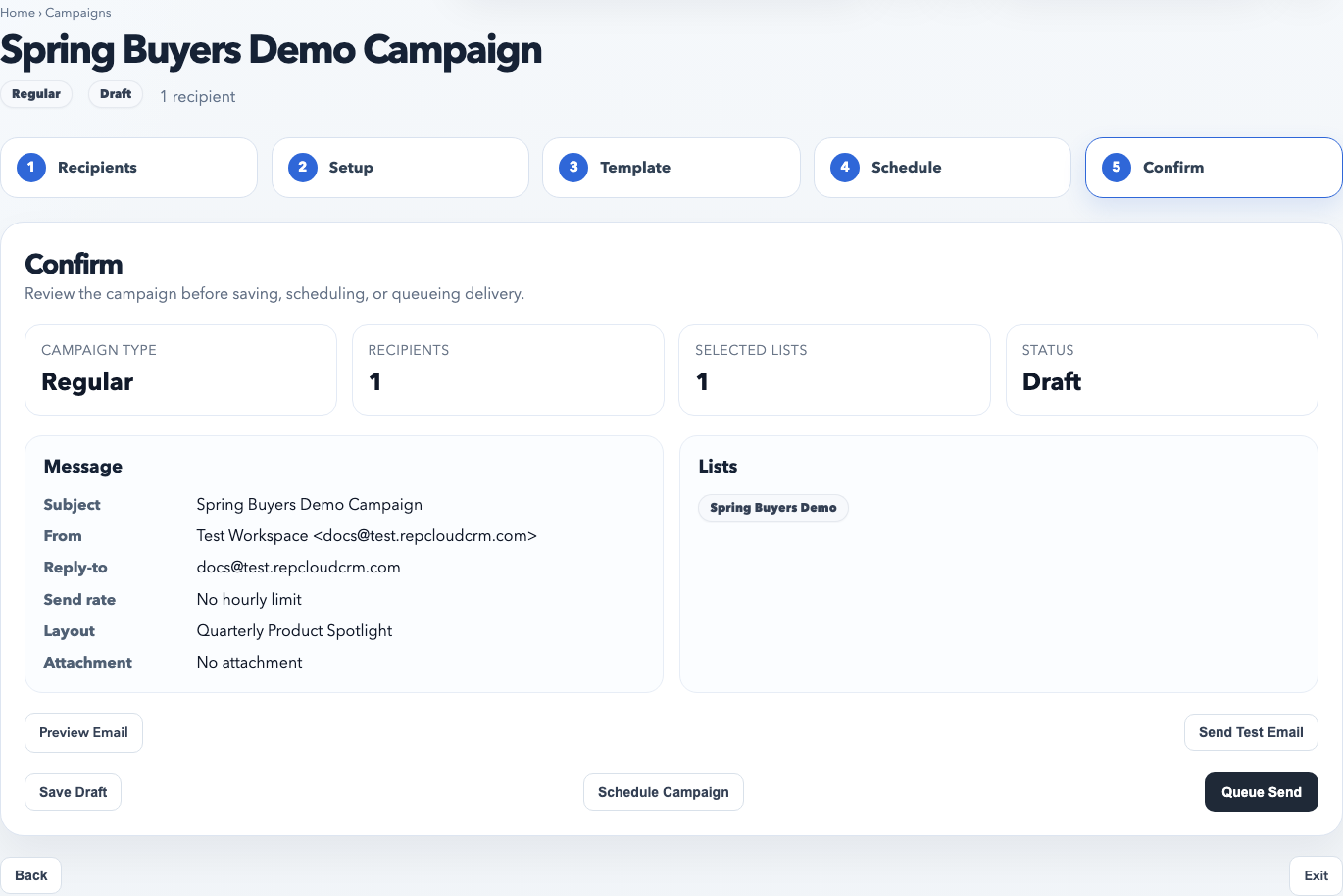
Use the confirm step to decide the outcome. Leave as draft, schedule for later, or queue immediately.
The Setup step is where the sender identity and campaign behavior are locked in. Do not skip this review, especially if the workspace has more than one sender profile.
What to verify before sending
The subject line matches the content and the campaign purpose.
The sender profile is the correct one for the workspace or brand.
Tracking settings match the reporting you want.
The audience count looks plausible for the chosen lists and filters.
Any attachment, CTA, or landing link has been tested.
The Confirm step is the final gate. Use it to leave the campaign as a draft, schedule it intentionally, or queue it only after the targeting and content are both correct.
Best practices
Start broad with the right list, then narrow only if the send truly requires it.
Use templates for repeatable layouts and save strong campaign designs back into the template library.
Send a test email before every important campaign, especially when the sender, branding, or layout changed recently.
Keep work in draft until the actual send window is confirmed.
Common mistakes
Skipping list hygiene and trying to solve everything with one-off filters.
Sending from the wrong sender profile because setup was not reviewed.
Relying on a saved draft without rechecking the recipient count after CRM data changed.
Scheduling a campaign before a test send or visual preview has been reviewed.