Onboarding
Workspace Setup Order
Set up branding, access, products, orders, and portal workflows in the right order before wider rollout.


Control the workspace name, portal visuals, login screens, and white-label presentation customers actually see.
Workspace branding is now focused on customer-facing surfaces, not the internal RepCloudCRM app shell.
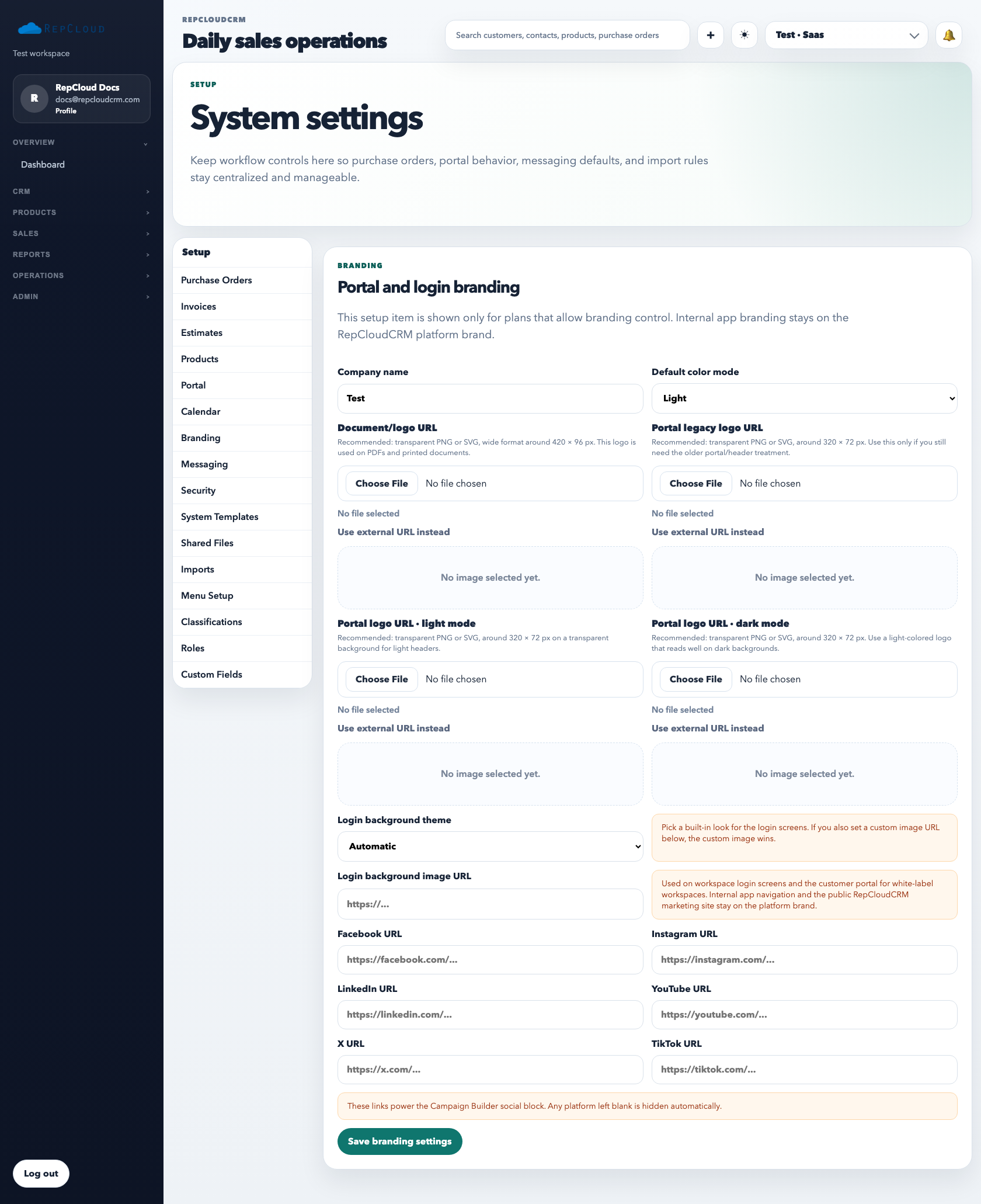
Important: tenant workspaces do not rebrand the internal RepCloudCRM admin app. This section is for portal, login, and document-facing branding only.
Recommended Next
Set roles, admin access, and staff permissions so people can do their jobs without exposing the wrong tools.