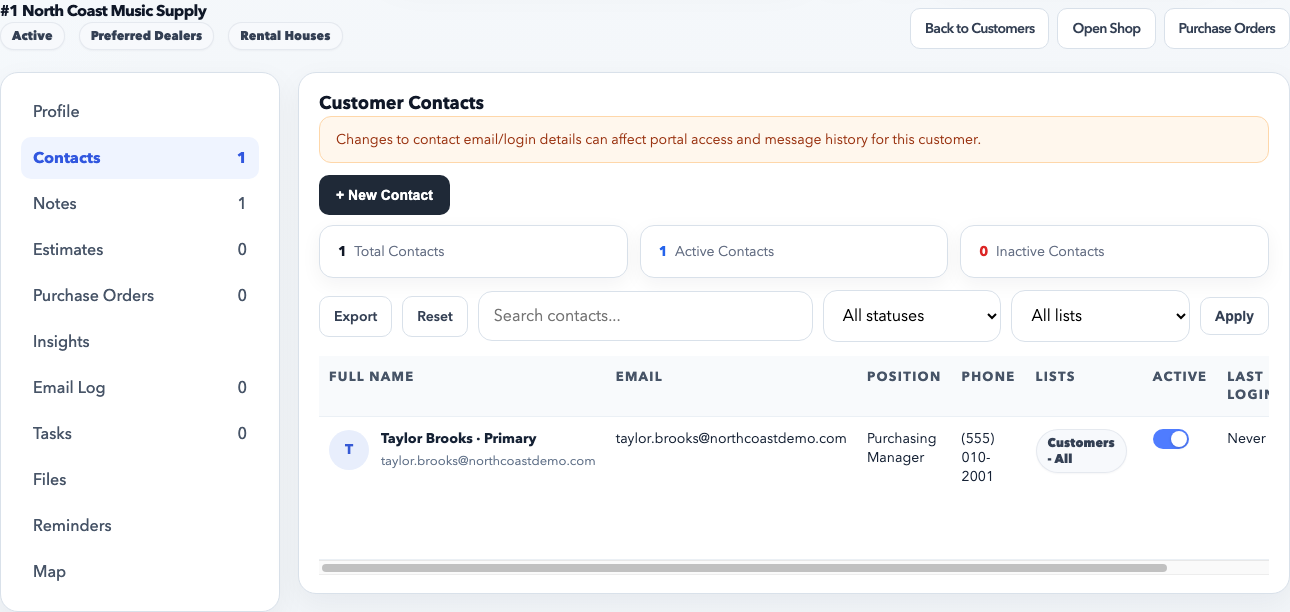
Contacts should be added under the correct customer account, not created as stand-alone records with no account relationship. That keeps campaign history, email logs, and portal access tied to the right customer.
Always start from the customer record. Contacts should live under the correct account so outreach, portal access, and history stay attached to the business relationship.
Before you add the contact
Open the customer account first and confirm you are working in the right company.
Check whether the contact already exists under that customer.
Decide whether this person needs portal access, campaign emails, or both.
Steps
Open the customer record.
Go to the contacts section.
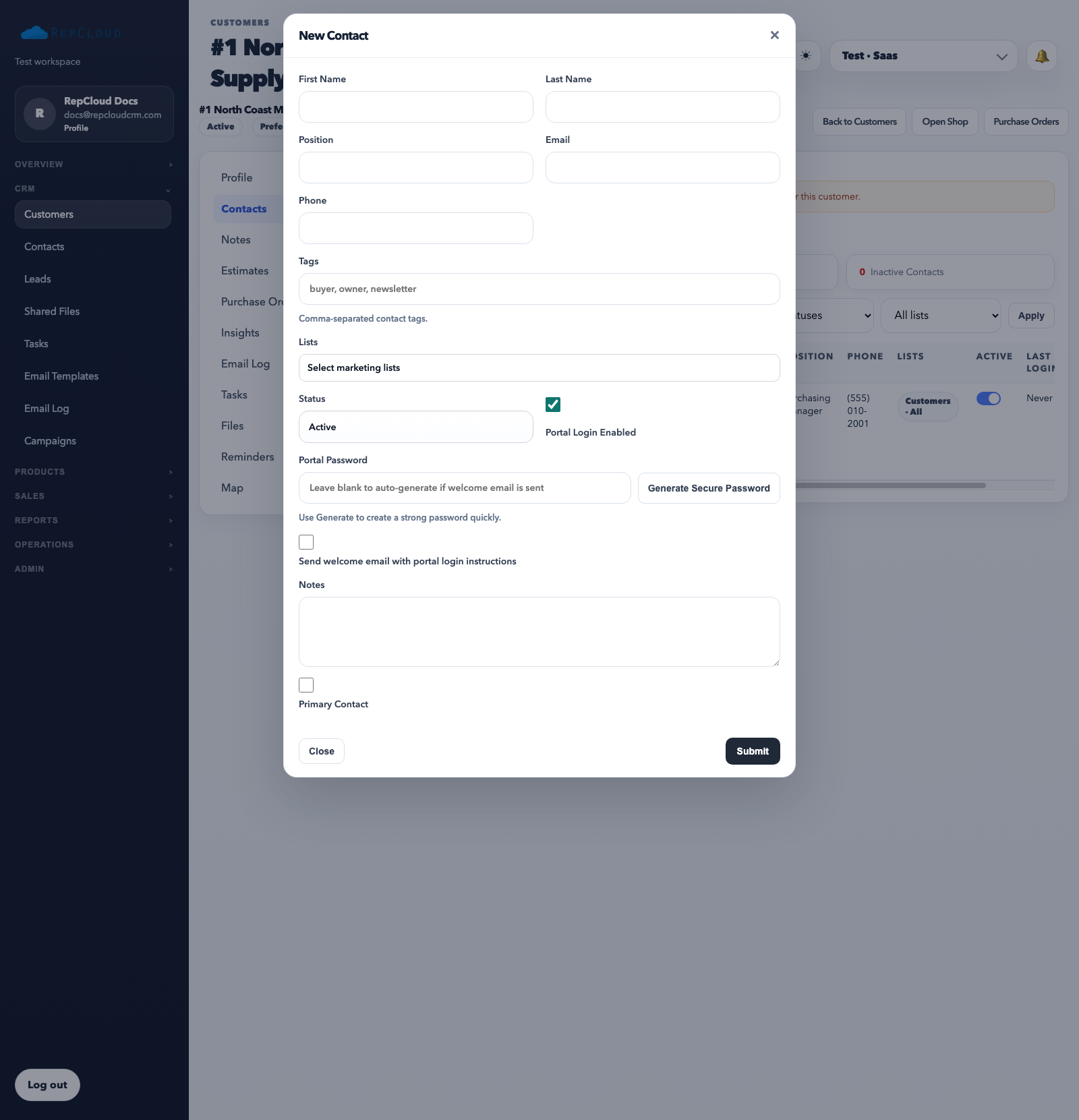
Click Add Contact.
Enter the person’s full name, email, and phone. The email matters most for campaigns, portal login, and message history.
Set the job title or role if useful. This helps staff know whether the person is a buyer, owner, finance contact, marketing contact, or support contact.
Choose whether the contact is active. Keep old contacts searchable if they matter historically, but do not leave inactive people marked as current if they should not receive outreach.
Enable portal login only if this person should sign into the portal. Portal access should be person-specific.
Save the contact.
The contact modal is where you decide whether the person is active, primary, included in marketing lists, or allowed into the customer portal.
When to enable portal access
Enable it for real end users, buyers, or customer staff who need to log in.
Do not share one portal login across a whole company if multiple individuals use the portal.
If welcome emails are enabled, make sure the email address is valid before turning access on.
After save
Confirm the contact appears on the customer record.
If portal access is enabled, test the login or send the welcome email.
If the person should receive campaigns, make sure they are included in the correct marketing lists or targeting logic.
Best practices
One contact record per real person.
Use role/title fields instead of stuffing extra descriptions into the name.
Archive or deactivate stale contacts rather than deleting them if they have history tied to emails or orders.
Common mistakes
Adding the contact under the wrong customer.
Using a shared company email as if it were a real person.
Turning on portal access before confirming the contact should actually have it.
Recommended Next
CRM Email Templates
Use CRM email templates for direct messaging and saved replies without confusing them with campaign-builder layouts.